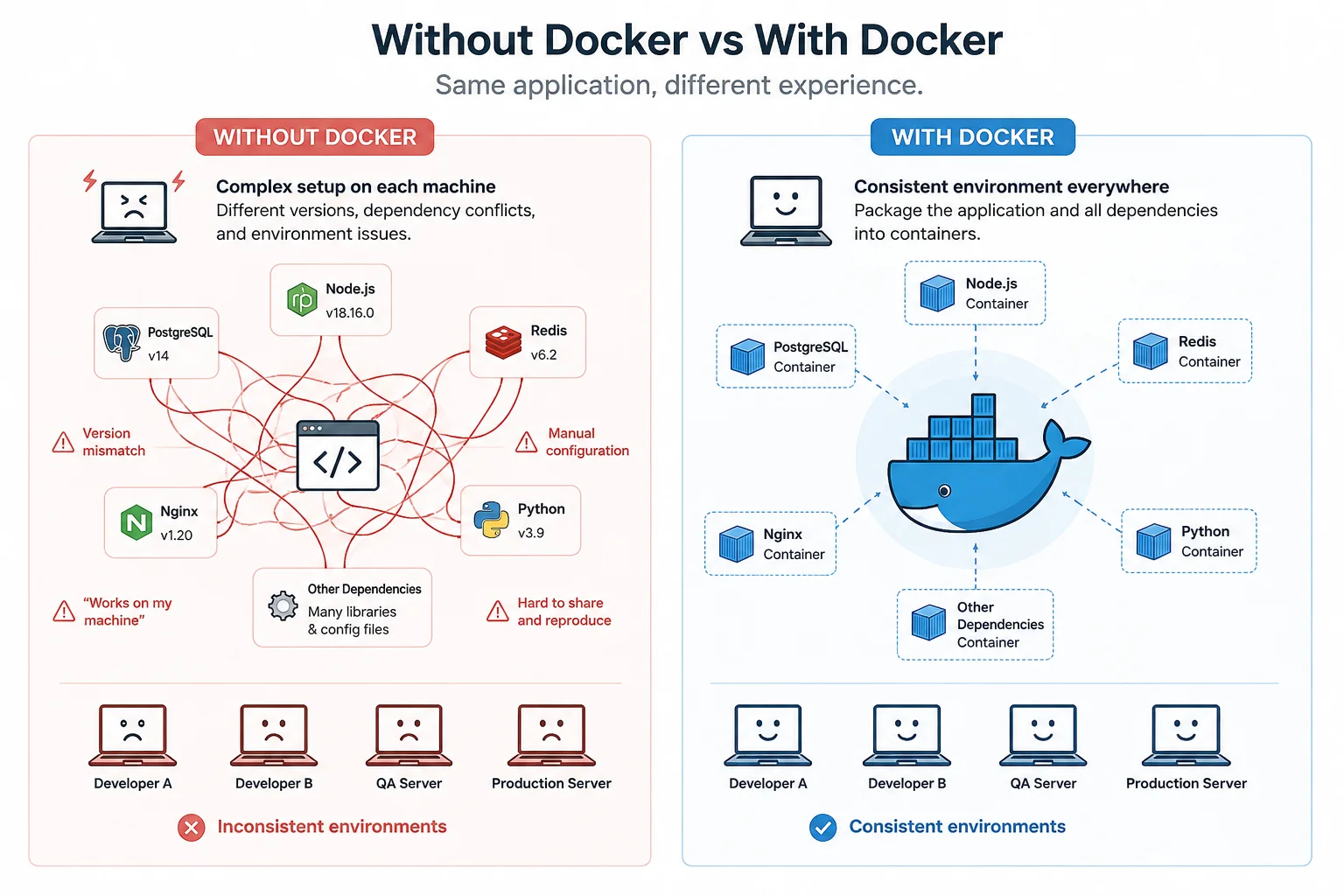
If you've been programming for a while, you've probably run into this situation at least once: the project works perfectly on your machine, but as soon as it runs on a teammate's computer or gets deployed to a server, things start breaking.
Maybe the Node.js version is different. Maybe the database version doesn't match. A dependency could be missing on the server, or the environment configuration might not be the same as your local setup.
And sooner or later, someone says the classic line:
“But it works on my machine!”
Docker was built to solve exactly this kind of problem. The basic idea is simple: instead of making your application depend on the configuration of a particular machine, you define the environment it needs to run as part of the project.
What Problem Does Docker Actually Solve?
Imagine you're working on a web application with an Angular frontend, a Node.js or .NET API, PostgreSQL as the database, and Redis for caching.
To run this project on a new machine without Docker, you'd normally have to install the correct versions of all these tools. Then you'd configure environment variables, create the database, check the required ports, and start the services in the correct order.
In a team, this can get messy pretty quickly.
The project might have been developed with Node.js 22 while another developer still has Node.js 20 installed. PostgreSQL on the development machine might be a different version from the one running in production. A native library could exist on one machine but be completely missing on another.
Docker tries to reduce this dependency on the host machine.
Instead of telling someone to:
- Install Node.js 22
- Install PostgreSQL
- Set up Redis
- Install the required dependencies
- Apply all the necessary configurations
we define the environment the application needs and let Docker create it for us.
What Is Docker?
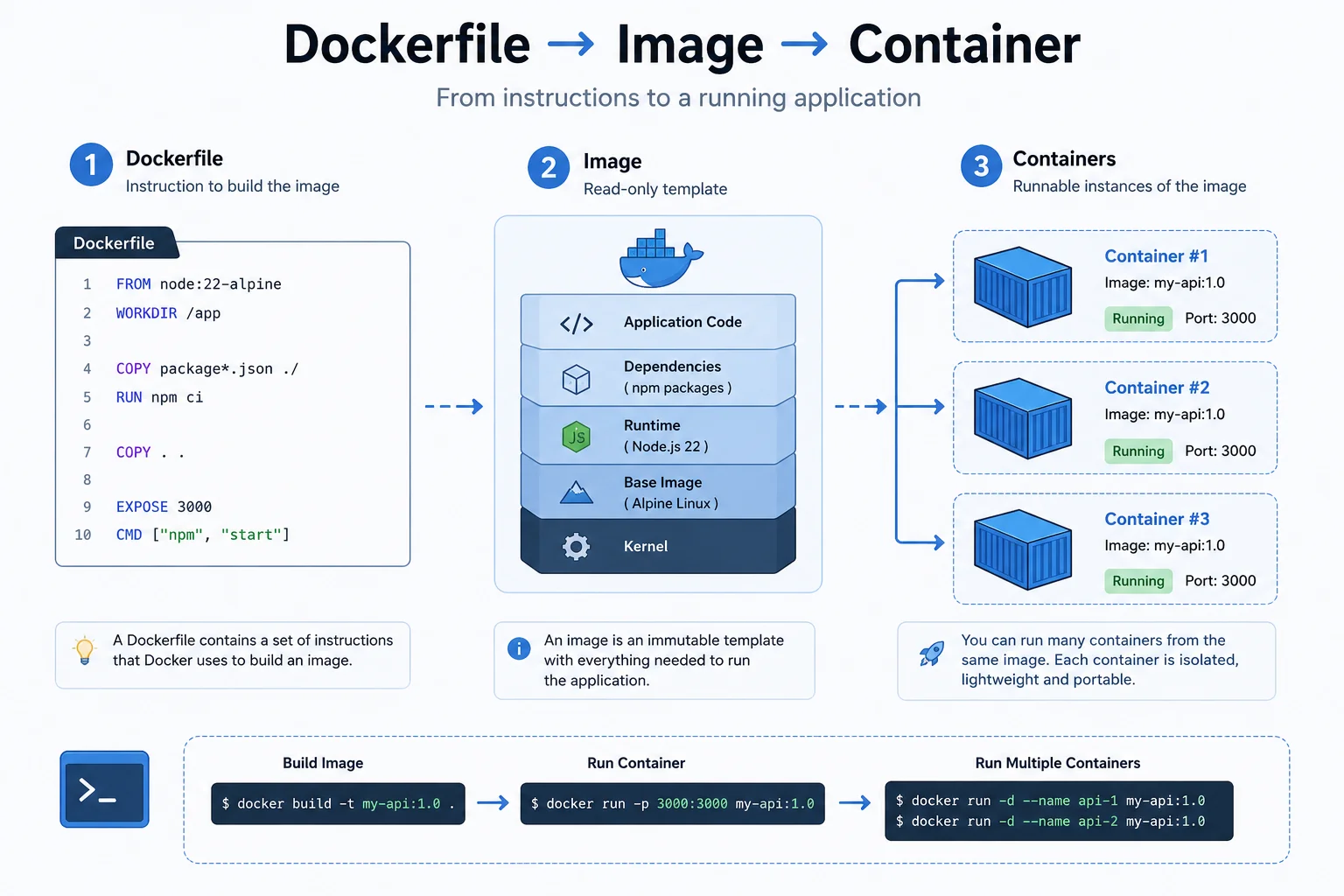
Docker is a platform for building and running applications inside isolated environments called containers.
You can think of a container as an isolated environment where an application runs with its own runtime, dependencies, and configuration, while remaining largely separated from the host system.
For example, our backend might require:
Node.js 22
npm packages
Environment Variables
Port 3000
Instead of manually installing and configuring these requirements on every machine, we describe them using Docker.
As a result, anyone with Docker installed can create nearly the same environment on their own machine.
This is one of the reasons Docker is so useful for development teams: the application's environment no longer exists only on one developer's laptop. It becomes something that can be defined and reproduced.
What Is a Dockerfile?
One of the first things you'll encounter when working with Docker is a file called a Dockerfile.
A Dockerfile describes how Docker should build the environment for your application.
For example, a simple Dockerfile for a Node.js backend might look like this:
FROM node:22-alpine

WORKDIR /app

COPY package*.json ./

RUN npm ci

COPY . .

EXPOSE 3000

CMD ["npm", "start"]
The first line:
FROM node:22-alpine
defines Node.js 22 on Alpine Linux as our base image.
Then:
WORKDIR /app
sets the working directory inside the container.
This part copies the package files and installs the project's dependencies:
COPY package*.json ./
RUN npm ci
And finally:
CMD ["npm", "start"]
defines the command that should run when the container starts.
Once the Dockerfile is ready, we can build an image:
docker build -t my-api .
And then run it:
docker run -p 3000:3000 my-api
At this point, our backend is running inside a container.
Image vs Container
Two terms you'll see constantly when learning Docker are Image and Container.
An Image can be thought of as a ready-to-use template for running software.
For example:
node:22-alpine
postgres:17
redis:alpine
nginx:alpine
These are all Docker Images.
A Container, on the other hand, is a running instance of an Image.
If we compare this to programming concepts, you can think of an Image as a Class and a Container as an Instance of that Class.
You can create multiple independent containers from the same image.
For example, you could build a single image for your backend and run three containers from it, then distribute incoming requests between those containers.
This becomes particularly useful when an application needs to scale.
Docker vs Virtual Machines
A common question when learning Docker is: if we already have Virtual Machines, why do we need containers?
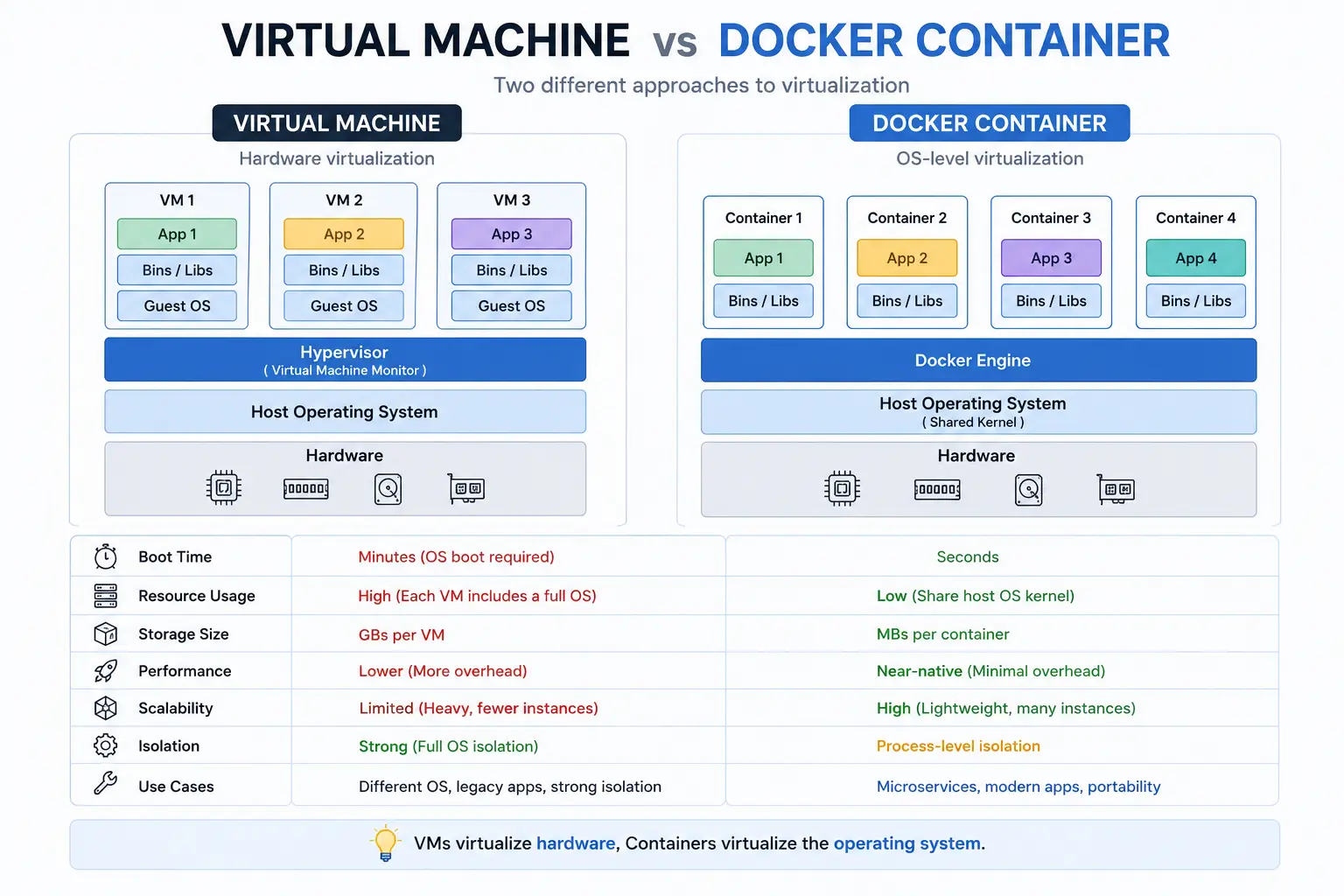
In a Virtual Machine, each VM normally has its own operating system.
So if several VMs are running on the same server, each one uses resources for its own guest operating system.
A simplified VM architecture looks something like this:
Hardware
   ↓
Host OS
   ↓
Hypervisor
   ↓
Guest OS
   ↓
Application
Containers work differently.
They generally share the host operating system's kernel, so each container doesn't need to run an entire operating system of its own.
A simplified container architecture looks more like this:
Hardware
   ↓
Host OS
   ↓
Docker
   ↓
Containers
Because of this, containers are usually much lighter and faster to start than full virtual machines.
That doesn't mean Docker completely replaces VMs.
In many real-world infrastructures, Docker itself runs inside a Virtual Machine. The two technologies solve problems at different layers and are often used together rather than as direct replacements for each other.
Docker Compose: When One Container Isn't Enough
Real applications rarely consist of just one container.
A project might include:
- Frontend
- Backend API
- PostgreSQL
- Redis
- Nginx
You could start every service individually using docker run, but managing them this way becomes annoying as the project grows.
This is where Docker Compose becomes useful.
Docker Compose lets us define multiple services in a single file.
For example:
services:

  api:
    build: ./backend
    ports:
      - "3000:3000"
    depends_on:
      - database
      - redis

  database:
    image: postgres:17
    environment:
      POSTGRES_DB: myapp
      POSTGRES_USER: admin
      POSTGRES_PASSWORD: password
    volumes:
      - postgres-data:/var/lib/postgresql/data

  redis:
    image: redis:alpine

volumes:
  postgres-data:
Now the entire environment can be started with:
docker compose up -d
And stopped with:
docker compose down
Instead of manually starting PostgreSQL, Redis, and the backend one by one, the entire environment can be managed together.
This becomes especially useful when a new developer joins the team. Instead of giving them a long document explaining how to install and configure every service, a large part of the development environment is already defined in Docker.
What Are Docker Volumes?
Suppose PostgreSQL is running inside a container.
If we delete that container, we definitely don't want the application's database to disappear with it.
Docker solves this problem with Volumes.
A Volume provides persistent storage whose lifecycle is separate from the container itself.
For example:
volumes:
  - postgres-data:/var/lib/postgresql/data
In this case, PostgreSQL stores its data in the Volume.
Now the database container can be removed and recreated without losing the actual database.
Volumes are commonly used for databases, uploaded files, and other data that needs to survive container recreation.
How Do Containers Communicate?
Another important Docker concept is Networking.
Suppose our backend needs to connect to PostgreSQL.
If both services are defined in Docker Compose, Docker can create an internal network for them.
For example, if our database service is named:
database:
  image: postgres:17
the backend can connect to it using:
database:5432
instead of relying on manually assigned IP addresses.
The service name effectively becomes a hostname inside the Docker network.
This allows services to communicate with each other without depending on the host machine's network configuration.
A Real-World Web Application with Docker
Let's say our project has a structure like this:
my-project/
│
├── frontend/
│   └── Angular
│
├── backend/
│   └── Node.js
│
├── nginx/
│   └── nginx.conf
│
└── docker-compose.yml
The Frontend and Backend can each have their own Docker Image.
PostgreSQL and Redis can run in separate containers, while Nginx handles incoming traffic and routes requests to the appropriate service.
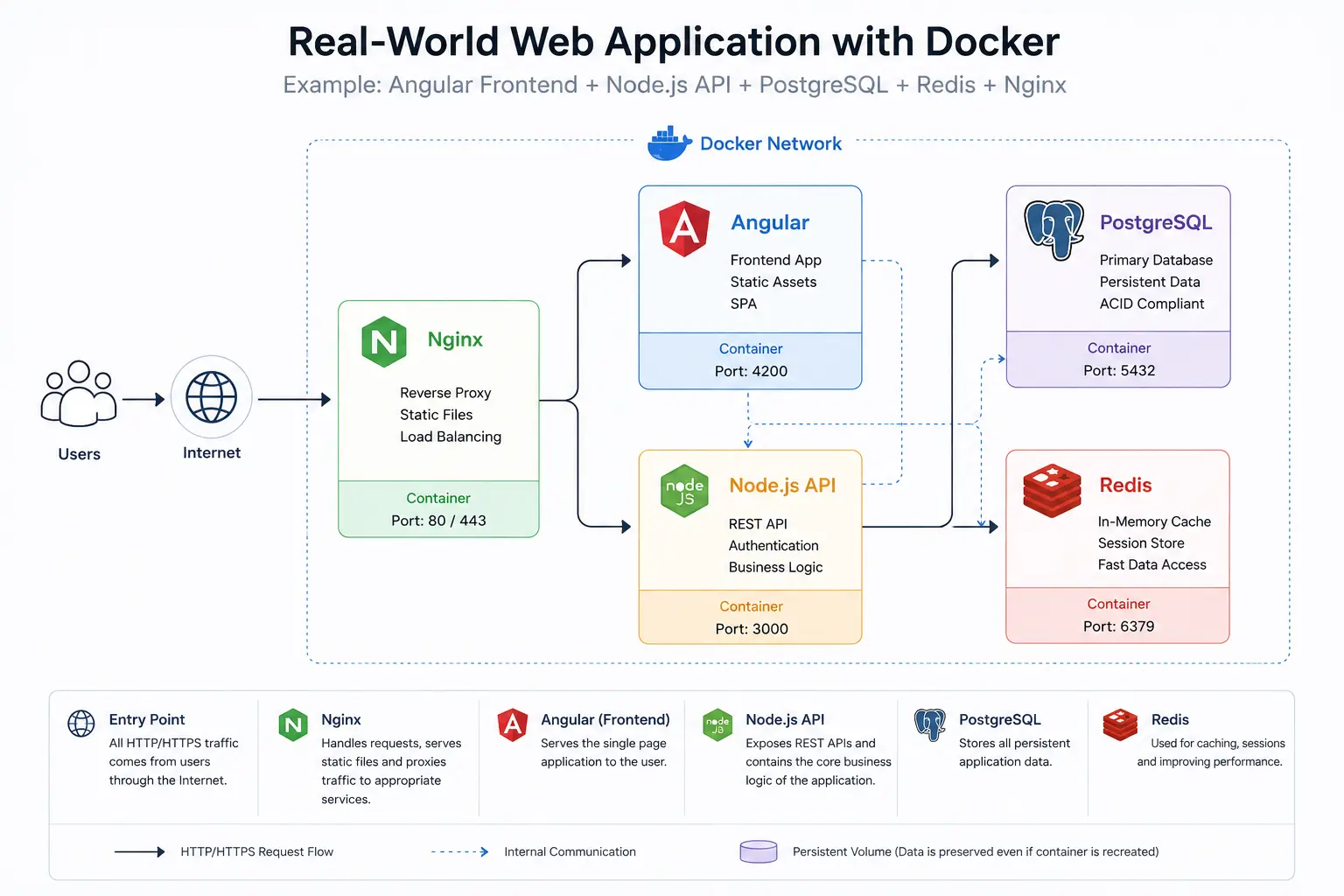
Now when a new developer clones the repository, they don't necessarily need to install every service manually.
In an ideal setup, they configure the required environment variables and run:
docker compose up -d
A few moments later, the Frontend, Backend, Database, and Redis services are ready to use.
This is where Docker's value becomes much easier to see in practice.
Docker Isn't Just for Web Applications
Although Docker examples often focus on backends and databases, containers aren't limited to web development.
A good example is AI and Machine Learning.
These projects often depend on several libraries and tools where version compatibility matters a lot:
Python
PyTorch
CUDA
cuDNN
Transformers
NumPy
Sometimes a small version change in one dependency is enough to break the entire environment.
Docker allows us to define a specific environment for an AI project and reproduce that environment on a development machine, a server, or a GPU-powered machine.
That's why many AI and Machine Learning tools also provide official or ready-to-use Docker Images.
Docker Doesn't Solve Every Deployment Problem
Docker is sometimes presented as if containerizing an application suddenly makes deployment simple.
It doesn't.
Docker solves an important part of the problem, but there are still plenty of things you need to handle separately:
- Secret management
- Security
- Monitoring
- Logging
- Backups
- Load balancing
- Server management
- Deployment strategies
In larger systems, you'll probably also encounter tools such as Kubernetes.
Docker and Kubernetes are not the same thing.
Docker mainly focuses on building and running containers, while Kubernetes is designed to orchestrate and manage large numbers of containers and services across multiple machines.
Useful Docker Commands
To see currently running containers:
docker ps
To see all containers:
docker ps -a
To list available images:
docker images
To inspect the logs of a container:
docker logs <container-name>
To open a shell inside a container:
docker exec -it <container-name> sh
To start Docker Compose services:
docker compose up -d
To follow Compose logs:
docker compose logs -f
And to stop the entire Compose environment:
docker compose down
These commands cover a large part of what you'll use in day-to-day Docker development.
Conclusion
The biggest advantage of Docker isn't simply that it runs an application inside a container.
The important part is that the application's runtime environment becomes something we can define as part of the project.
We can specify which runtime the application uses, which dependencies it needs, which services should run alongside it, and how those services communicate.
This reduces the gap between Development, Testing, and Production environments and makes running the same project across different machines much more predictable.
For a very small application, the benefit might not be immediately obvious. But once databases, caches, backends, frontends, workers, and other services become part of the system, Docker starts making a lot more sense.
Docker won't solve every development or deployment problem, but it significantly reduces one of the oldest frustrations in software development:
An application that only works on the machine of the person who built it.
💙 If you found this article helpful, feel free to like it and share it with others who might find it useful too.